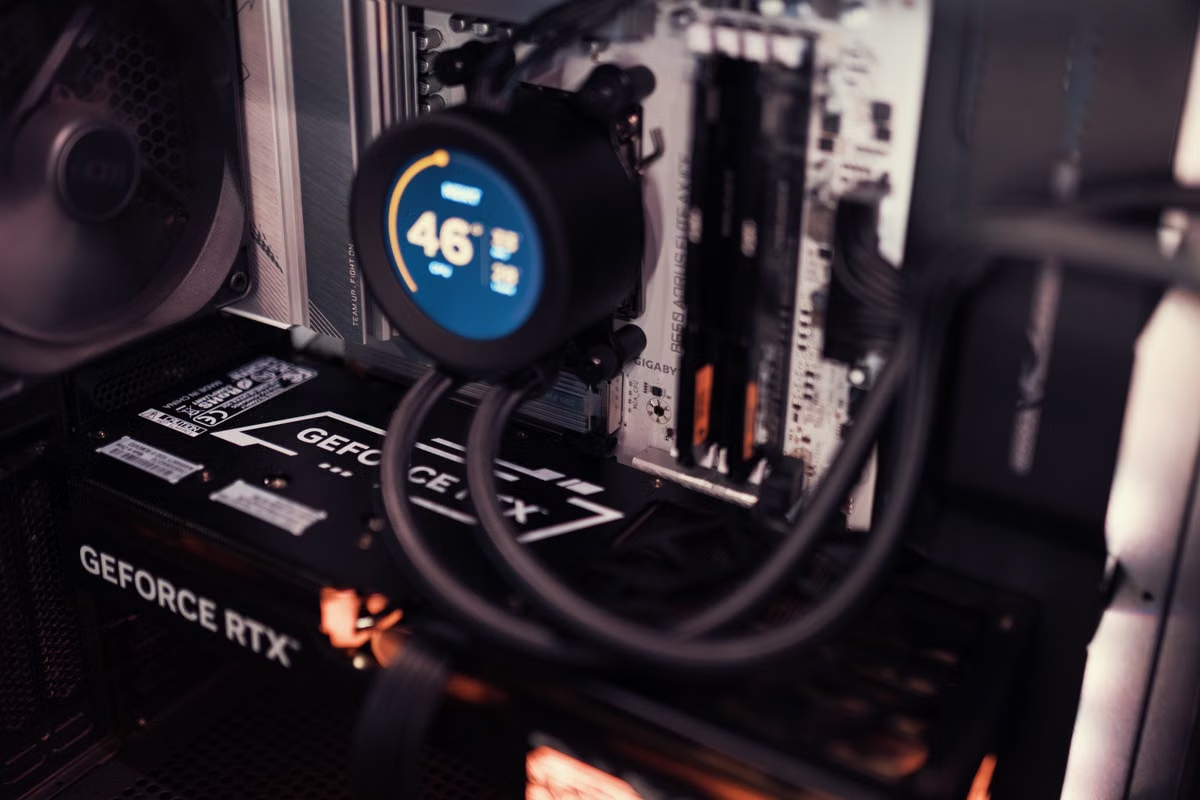
A ComfyUI workflow fails to load, slows down, or runs out of memory before it finishes.
Fastest fix: identify your target model and representative workflow first, choose the GPU and VRAM for that workload, then size system memory and SSD storage around it. There is no single configuration that suits every ComfyUI user. A personal PC is usually sized for an individual workload; an enterprise workstation must also account for concurrent users, larger jobs, and sustained operation.
This guide is for you if you are setting up ComfyUI locally and are unsure which GPU to buy, upgrading memory or storage after hitting a bottleneck, or planning workstation capacity for a team.
What configuration does ComfyUI local AI need? Start with the workload
Before you compare components, write down what you need the machine to do. The model, workflow, output resolution, optional nodes, and number of simultaneous jobs all affect resource use. A machine that handles a simple image-generation workflow may not handle a graph with several models, high-resolution processing, and extra conditioning steps.
Treat the workflow as your test case, not as an afterthought. The ComfyUI repository is the starting point for checking the project’s installation and supported environment information. Then check the requirements for your chosen model and each custom node. A workflow can depend on components with different backend or version requirements, so a headline GPU specification does not prove that your complete setup is compatible.
Record these conditions before you shop or upgrade:
- The model files and model families you plan to load.
- The workflow graph, including custom nodes and any upscaling or refinement stages.
- The output dimensions and the quality settings you expect to use.
- Whether you run other memory-intensive software at the same time.
- Whether jobs run sequentially or multiple people need the machine concurrently.
- The operating system, GPU backend, and software versions you intend to use.
This is also how you avoid buying for a benchmark that does not represent your work. A model that loads successfully is not necessarily proof that a more demanding workflow will complete reliably. Test the complete graph, including the output settings you intend to keep.
Choose the GPU and VRAM for your actual graph
The GPU performs the model’s compute work, while VRAM holds model weights and the data needed during execution. For many common ComfyUI workflows, the GPU’s ecosystem and backend support matter alongside its raw specifications. Check the requirements for your operating system, PyTorch backend, ComfyUI installation, and custom nodes instead of assuming every card will behave alike.
Use ComfyUI’s GPU selection guidance to shortlist candidates, then verify the requirements of your own workflow. If you are considering AMD hardware, check the supported platform and setup against the official ROCm compatibility documentation. Compatibility depends on the specific hardware and software combination. A node written for one backend may not work in the same way on another.
Is VRAM more important than the GPU model?
Neither is a complete selection rule by itself. VRAM determines how much of the model and working data can fit on the GPU; the GPU architecture and supported software stack affect whether the workflow can use that hardware effectively. A card with a familiar model name but insufficient VRAM for your chosen graph can force compromises, while a card with enough VRAM can still be unsuitable if your backend or nodes do not support it.
Use this workload-based distinction:
- Lightweight work: Start by testing the exact model and a representative graph. If the graph fits within the available VRAM and completes at your target settings, a larger card may not solve a problem you do not have.
- Regular creative work: Check whether the workflow loads all its required models together, whether the output dimensions cause memory pressure, and whether you need headroom for other GPU tasks. If the test fails, identify whether it is a VRAM issue, a software compatibility issue, or a separate bottleneck.
- High-load work: Test the actual high-resolution, multi-stage, or multi-model graph you expect to use. If it cannot complete without repeated offloading, reducing settings, or removing workflow stages, choose a GPU with more usable VRAM or redesign the workflow. Do not treat offloading as a guarantee of equivalent speed or convenience.
A product specification can help you compare cards, but it cannot tell you how much VRAM your specific graph will consume. As a reference point, NVIDIA lists the GeForce RTX 5080 with 16 GB of GDDR7 memory and a 256-bit memory interface in its official specifications. Those are product facts, not a ComfyUI capacity recommendation. The card may suit one workflow and be constrained by another.
If a run fails with an out-of-memory error, save the graph and settings, then make one controlled change: reduce output dimensions, remove an optional stage, or test a smaller model. If that resolves the failure, you have evidence of a workload limit. If it does not, inspect backend support, node errors, and software versions before concluding that the GPU is too small.
Size system memory around loading and concurrent work
System memory, or RAM, is separate from GPU VRAM. It supports the operating system, ComfyUI, model loading, caches, and other running applications. A workflow can strain RAM when models are being loaded or moved between memory pools, especially if you are also running editing software, browsers, or other local AI tools.
There is no universal RAM figure that applies to every model and graph. A single model’s behavior does not establish a safe system-memory requirement for all workflows. Instead, run your representative graph while monitoring system memory and GPU memory. Record the peak use and whether the operating system starts relying heavily on swap. Repeat the test with the other applications you expect to keep open.
For an individual user, size memory for the way you actually work. If ComfyUI is the only demanding task, test that workload first. If you often keep design tools, image editors, or several models open, repeat the test with those applications active. If memory pressure appears only in the combined setup, increasing system RAM may improve stability even if it does not increase the GPU’s VRAM.
For a team, measure the whole workstation under realistic use. Multiple active sessions, queued jobs, and shared applications can change the memory requirement. Do not take the peak from one person’s isolated run and treat it as the capacity target for a shared machine. Where concurrent workloads are expected, test them concurrently and record which process causes the pressure.
Symptoms to investigate include model loading that stalls, applications closing under memory pressure, heavy swapping, or a workflow that runs alone but becomes unreliable when other tools are open. These symptoms do not all point to RAM alone. Check logs and monitor both memory pools before making a purchase.
Plan SSD capacity for models, outputs, and project history
SSD capacity affects how much model data and project material you can keep available. Storage speed matters most when you load large files, move projects, or write substantial output. But a fast SSD does not fix a shortage of VRAM or system RAM, and extra capacity does not make an incompatible node work.
The SDXL base model page describes the model and its intended use; the associated model file listing lets you inspect the file you plan to download. Treat each model file as part of your storage estimate, then add the other files your workflow needs. Do not assume that installing ComfyUI alone represents the space required by your full model library.
Estimate capacity from your own inventory:
- List the checkpoints, encoders, adapters, and other model files required by your workflows.
- Include generated images, intermediate outputs, project files, and any retained versions.
- Decide which files stay on the fast working drive and which can be archived elsewhere.
- Check whether your cache and temporary directories share space with the model library.
- Revisit the estimate when your model collection or retention policy changes.
To distinguish an SSD bottleneck from a capacity problem, observe when the slowdown occurs. If loading takes time but generation proceeds normally once the model is in memory, storage may be part of the delay. If the drive is nearly full, output creation and temporary files can also become a problem. If the graph runs out of VRAM during generation, replacing the SSD with a faster one will not resolve that limit.
Check operating-system and backend support before buying
Hardware decisions need a software compatibility check. The same GPU specification does not guarantee identical support across operating systems, backends, and custom nodes. Read the current ComfyUI installation guidance, check the target model’s requirements, and confirm that each required node supports your selected environment.
If you are evaluating a Mac for local use, do not assume that its GPU path is interchangeable with a CUDA workflow. PyTorch documents its MPS backend, but that is a different backend from CUDA. Verify your specific ComfyUI setup and custom nodes against the documentation and test them directly. A node that depends on a particular GPU library can be a blocker even when the underlying hardware appears capable.
A practical example: you find a workflow file that uses a custom node and several model components. First, confirm that the node’s dependencies install in your target environment. Next, load the exact models and run the graph at the output settings you need. If the workflow fails before generation begins, resolve compatibility or dependency problems before upgrading hardware. Buying a more powerful GPU will not fix missing software support.
Compare personal PCs and enterprise workstations by load
The distinction is not simply “consumer” versus “business” hardware. A personal PC may need to serve one person running a defined graph. An enterprise workstation may need more memory headroom, room for larger models, sustained operation, manageable storage, and enough capacity for concurrent work. Those needs are determined by the workload, not by a fixed multiplier between two user types.
| Decision area | Personal PC for individual work | Enterprise workstation for team or sustained work |
|---|---|---|
| GPU and VRAM | Choose for your most demanding representative workflow, then verify the graph completes at your target settings. | Choose for the largest supported workload and test the expected number of concurrent jobs. |
| System memory | Measure the workflow with the other applications you normally use. | Measure total use during concurrent activity, not only a single-user run. |
| SSD | Estimate model, output, cache, and project needs from your own inventory and retention habits. | Include shared project growth, backup or archive handling, and the process for keeping working storage available. |
| Stability | Confirm that repeated runs complete and that software and nodes remain compatible. | Validate long-running operation, recovery procedures, version control, and who maintains dependencies. |
| Main trade-off | Avoid paying for capacity your tested workload does not use. | Avoid sizing only for an average run when a larger or concurrent workload is part of the service requirement. |
For enterprise planning, define the workload service level before choosing a workstation. Decide which models and graphs are supported, whether users share the machine, and how jobs are scheduled. If users need separate environments or independent GPU capacity, test that arrangement rather than assuming a single shared workstation will behave like several isolated machines.
The advantage of a tightly specified personal setup is lower complexity: you can optimize for the graph you run most often. Its drawback is limited headroom if your models, output requirements, or parallel tasks grow. A team workstation can centralize maintenance and provide more capacity, but it also introduces shared-resource conflicts, dependency management, and operational responsibility.
Use this purchase and acceptance checklist
Before you buy or upgrade, test with the actual model and workflow you intend to run. Keep the test conditions consistent so you can compare a new configuration with the old one.
- [ ] Name the model files, custom nodes, and workflow graph you need to support.
- [ ] Record the operating system, GPU backend, ComfyUI version, and node versions used for the test.
- [ ] Set the output dimensions and quality options to match the work you expect to deliver.
- [ ] Run the graph from model loading through final output, rather than checking only that the interface opens.
- [ ] Record peak VRAM and system-memory use, along with any errors, offloading, or settings changes needed.
- [ ] Repeat the run with your normal companion applications open.
- [ ] For shared use, test the expected concurrent jobs and note whether they interfere with one another.
- [ ] Measure model loading and output behavior separately so you can identify storage delays.
- [ ] Keep a copy of the workflow, settings, logs, and test conditions for future comparisons.
- [ ] Confirm backend and custom-node compatibility before ordering hardware.
Use the results to select the component that addresses the observed limit. If VRAM is exhausted during generation, prioritize GPU memory or a workflow change. If the machine swaps heavily while loading or working alongside other applications, investigate system RAM. If loading is slow but generation is stable, test the storage path. If errors occur before the graph starts, verify software compatibility first.
Keep local GPU compute separate from remote Mac workloads
A local GPU workstation is the appropriate tool when your ComfyUI workflow needs a specific local GPU backend, direct access to your models, or predictable control over the machine’s compute resources. A remote Mac is not an equivalent substitute for a local GPU workstation: backend compatibility can differ, the workflow may depend on CUDA-specific nodes, and transferring large project files can add a separate operational step.
Remote Mac access can be useful for other tasks, such as iOS development, builds, or deploying an AI agent in a compatible Mac environment. If that is the work you need, compare the available Mac environment with your requirements and review the configuration and ordering process separately from your ComfyUI GPU sizing decision.
If your current setup relies on a shared general-purpose PC, it may leave you with limited VRAM headroom, competing workloads, and unclear control over model or node versions. If you need to run ComfyUI locally, solve those limits with a workload-tested GPU workstation; renting a remote Mac from Macstripe is a better fit only when your task actually requires a Mac environment, such as remote development or compatible agent deployment.
